














Sooner or later, every PS5 owner encounters the same problem. The "not enough free space" message appears, forcing a difficult choice: which game to delete? An external hard drive for your PS5 is the most effective way to solve this issue.
While you cannot run PS5 games directly from a USB drive, you can use one to store them, freeing up internal space. More importantly, you can connect a drive containing your entire PS4 game library and play those titles directly from the external drive without interruption.
Understanding Your PS5 Storage Options
The PlayStation 5's key feature is its custom-built, ultra-fast internal NVMe Solid State Drive (SSD). It is responsible for the near-instant load times and seamless open worlds. However, after accounting for the system software, you are left with only about 667 GB of usable space.
That high-speed storage is consumed quickly.
Modern games require a significant amount of storage. A single title like Call of Duty can use over 200 GB on its own. It does not take long for three or four new releases to completely fill the console's storage. This leads to a routine of deleting old games to install new ones.
Why an External Drive is the Solution
An external drive is an essential accessory. It functions as an overflow storage for your game collection, allowing you to expand your library far beyond the internal SSD's capacity.
By offloading games, you gain several advantages:
- Expand Your Library: Keep dozens of additional games installed and ready, especially your entire PS4 back-catalogue, without using internal drive space.
- Save Time on Re-installs: Transferring a 150 GB PS5 game from an external drive back to the console is much faster than re-downloading it from the internet.
- Play PS4 Games Directly: Load all your backward-compatible PS4 titles onto the external drive and play them from there. This reserves your high-speed internal drive for PS5 titles.
It is important to remember that PS5 games are designed to utilize the internal SSD's speed. You can store them on an external drive, but to play them, you must move them back to the internal storage.
Consider your PS5's internal drive as your "now playing" list for current games. The external drive is your complete game library, holding everything you own, ready to be moved back into rotation. This guide will walk you through the setup process, starting with selecting the right drive.
Choosing the Right Drive for Your PS5
Selecting the right external hard drive for your PS5 involves more than just choosing the largest capacity available. Sony has specific requirements to ensure compatibility, and understanding the differences between drive types is crucial.
The primary choice is between a traditional Hard Disk Drive (HDD) and a modern Solid State Drive (SSD). An HDD uses spinning platters to store data, which makes it a cost-effective option for storing large amounts of data. This makes it suitable for creating a "game vault" for your entire PS4 library and for archiving PS5 titles you are not currently playing.
An SSD, in contrast, has no moving parts and uses flash memory for nearly instant data access. While the cost per gigabyte is higher, an external SSD will load your PS4 games much faster than an HDD, reducing wait times.
Decoding Sony's Technical Requirements
To ensure a drive is compatible with your console, Sony has established several clear requirements.
Here are the necessary specifications for any external drive:
- Connection Type: It needs SuperSpeed USB 5 Gbps or faster. This corresponds to USB 3.0, USB 3.1 Gen 1, or USB 3.2 Gen 1. If the product packaging indicates USB 3.0 or higher, it is compatible.
- Storage Capacity: The supported range is between 250 GB and 8 TB. Drives smaller than 250 GB will not work, and those larger than 8 TB are not supported for use as extended storage.
- Direct Connection: You must connect the drive directly to one of the PS5's USB ports. It will not function if connected through a USB hub.
This decision tree provides a simple visualization of how to use your external drive.
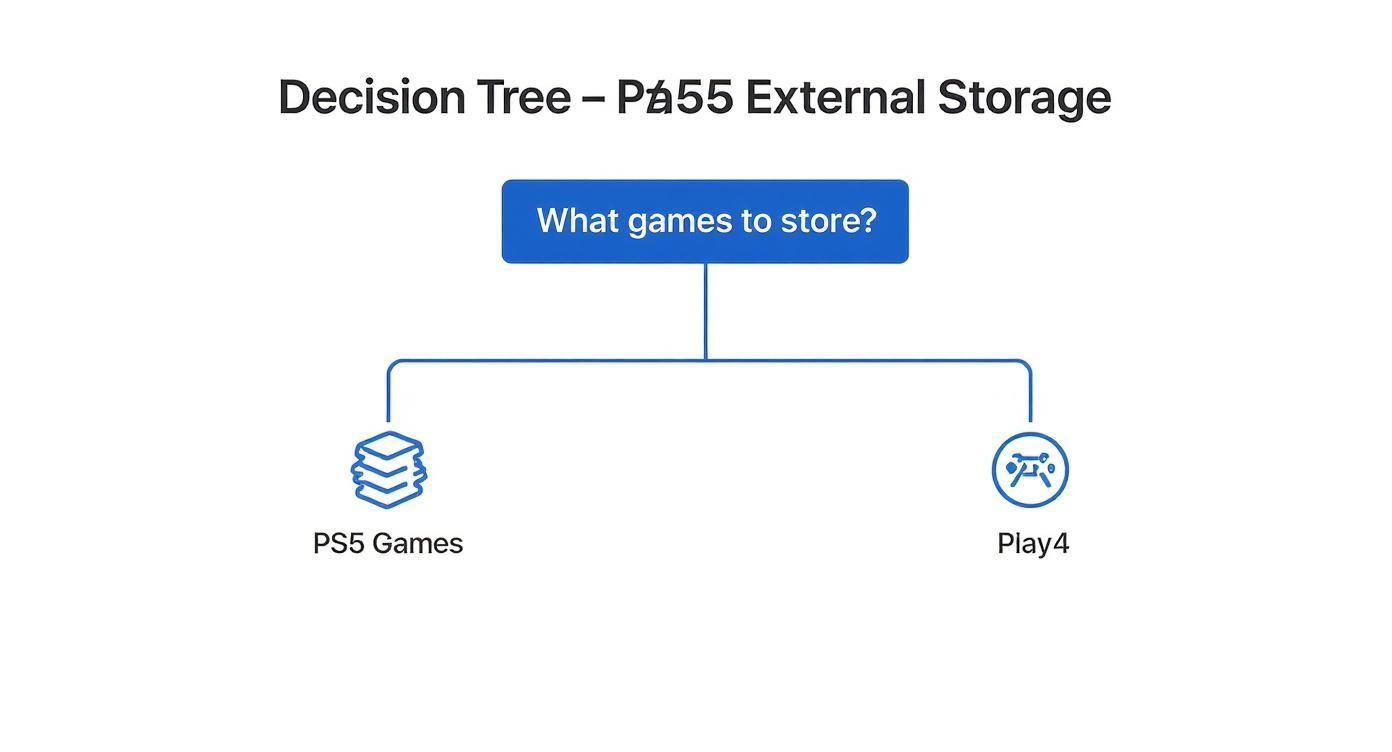
The two primary functions of an external drive are archiving PS5 games to free up internal space and actively playing your PS4 collection.
Matching Drive Capacity to Your Gaming Habits
The amount of space you need depends on your gaming habits. For most gamers, a 1 TB or 2 TB drive is a practical starting point, offering a significant storage increase at a reasonable cost. However, for serious collectors or subscribers to services like PlayStation Plus who want numerous games ready to launch, larger drives are becoming standard.
Choosing the right capacity initially can prevent the need for a future upgrade. It is often more economical to buy a larger drive now than to purchase a second one later.
The demand for high-capacity external hard drives has grown alongside PS5 sales. Market data indicates that drives in the 2TB-4TB and 5TB+ ranges are popular choices among PlayStation owners. This trend shows that gamers are willing to invest in larger drives to manage their game libraries. Projections estimate that the PS5 application segment will exceed 20 million units sold globally by 2025.
This highlights that fast storage is beneficial, even for older systems—similar to the upgrades performed on an Alienware 18 Area-51, Dell's ultimate gaming powerhouse.
How to Set Up and Format Your New Drive
Once you have a new external drive for your PS5, the setup process is straightforward, but it includes one mandatory step: formatting. The PS5 must prepare the drive to work with its system.
This initial setup will erase all data on the drive. If you have used it previously, ensure you have backed up any important files. Once formatting begins, the process is irreversible. The entire procedure is typically completed in just a few minutes.
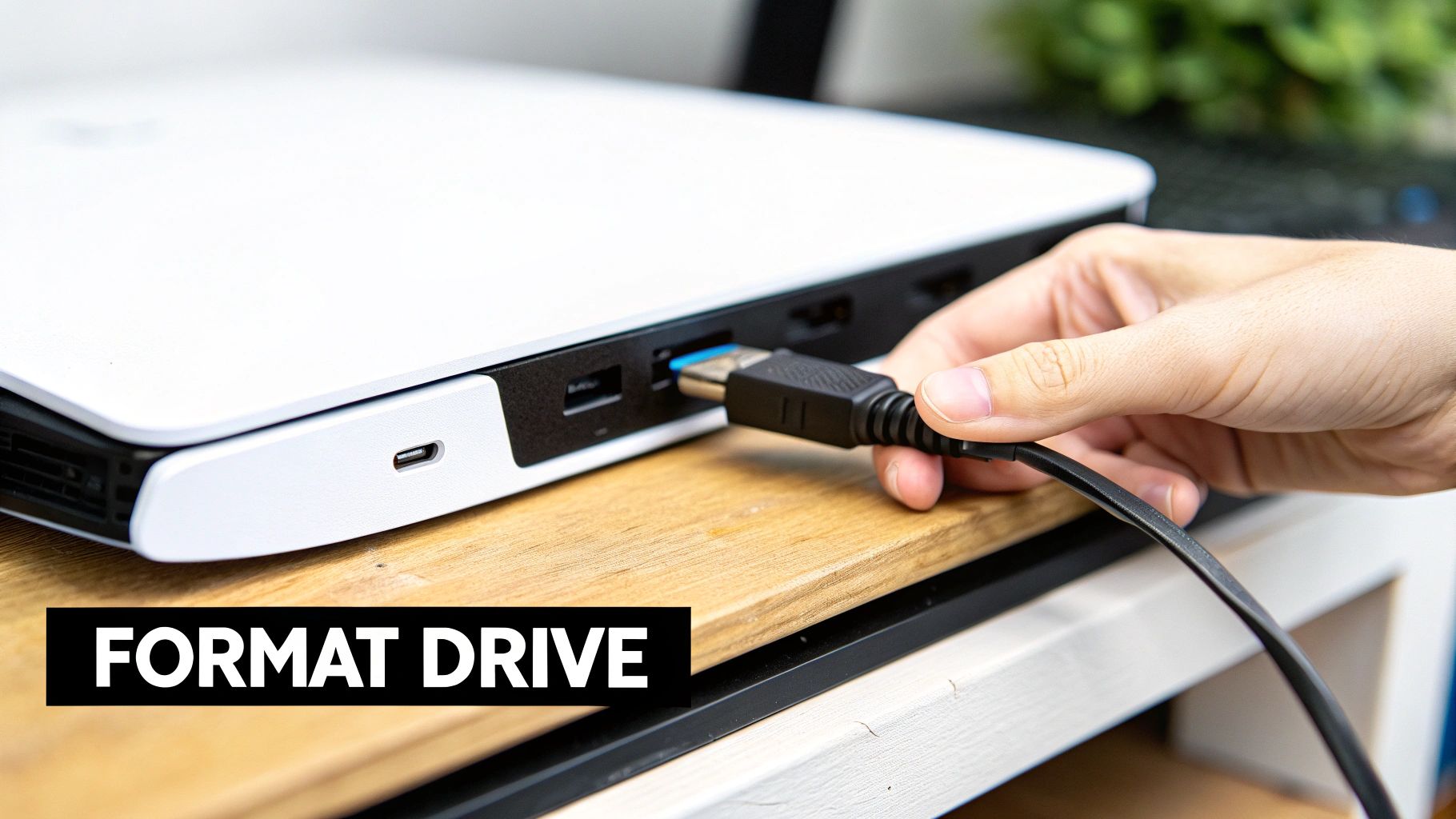
Connecting Your Drive to the PS5
The port you use to connect the drive is important.
Your PS5 has several USB ports, but they have different specifications. For an external storage drive, you need to use one of the two SuperSpeed USB ports on the back of the console. These are the rectangular USB-A ports located near the bottom.
While the front ports may function, they are not designed for the sustained, high-speed data flow required by a game drive. Plugging into the rear ports ensures your drive receives the necessary power and bandwidth to operate smoothly, avoiding lag or transfer errors.
Formatting the Drive as USB Extended Storage
Once the drive is connected to a rear port and your PS5 is powered on, the console will likely detect it immediately and prompt you to format it. If you miss the pop-up or it does not appear, you can initiate the process manually.
Here are the step-by-step instructions:
- Go to Settings: From your home screen, select the gear icon in the top-right corner.
- Select Storage: Scroll down the menu and choose Storage.
- Choose USB Extended Storage: You will see this option on the Storage screen. Select it.
- Format the Drive: Your connected drive will be listed. Select it and then choose the Format as USB Extended Storage option.
The PS5 will display a final warning that you are about to erase all data. Confirm that you want to proceed. The process is usually completed in less than a minute.
After formatting, your external drive is officially integrated with your PS5's storage. The console will now use it for your PS4 games and as a location to archive PS5 titles.
Safely Disconnecting Your Drive
It is as important to know how to disconnect the drive as it is to set it up. Never unplug the USB cable while your PS5 is on or in rest mode. Doing so can lead to data corruption, damage the drive's file system, or cause you to lose game saves.
Taking a few seconds to disconnect it properly protects your hardware and your games.
The Correct Way to Remove Your Drive
- Go to Settings > Storage > USB Extended Storage.
- Choose the option that says Safely Remove from PS5.
- Wait for the on-screen message confirming that it is safe to disconnect the drive.
- Once you receive confirmation, you can unplug the USB cable.
This simple habit makes a significant difference. Following this procedure ensures your drive and game library remain in good condition.
Managing Your Game Library Effectively
https://www.youtube.com/embed/V8cmLeFQBT0
With your external drive formatted and ready, you can begin organizing your games. Instead of constantly deleting games to create space, you can build a flexible library that keeps all your titles accessible.
The best strategy is to assign different roles to your internal and external drives. Your external hard drive for PS5 serves two purposes: a playable archive for all your PS4 games and a storage vault for your PS5 titles. This setup keeps the console's high-speed internal drive free for the games that require its speed, while your entire PS4 collection remains ready to launch.
Moving Games Between Internal and External Storage
Transferring games between storage locations is a simple process. Whether you are archiving a large PS5 game to your external drive or moving it back to play, the steps are easy to follow.
Here’s how to move games already installed on your console:
- Go to your PS5 Settings, then select Storage.
- Choose Console Storage, then click on Games and Apps.
- You will see a list of everything installed. Find and select the Items You Can Move tab.
- Check the boxes next to the games you want to move to your external drive.
- Select the Move button to begin the transfer.
This process works both ways. To move a PS5 game from your external drive back to the internal storage, start the process from the USB Extended Storage menu instead.
PS5 games must run from the internal drive, but they can be stored on the external drive indefinitely. Transferring a 100 GB game from an external SSD is significantly faster than re-downloading it.
This table clarifies what you can and cannot do with PS5 and PS4 games on an external drive.
PS5 vs PS4 Game Storage and Playability on External Drives
| Action | PS5 Games on External Drive | PS4 Games on External Drive |
|---|---|---|
| Store Games | Yes. You can store PS5 games to free up internal space. | Yes. You can store your entire PS4 library. |
| Play Games Directly | No. PS5 games must be moved to internal storage to play. | Yes. PS4 games can be played directly from the external drive. |
| Install New Games | No. New PS5 games must install to the internal SSD first. | Yes. You can set new PS4 games to install here by default. |
The rules are different for each console generation, but the strategy is straightforward: store PS5 games, and both store and play PS4 games.
Give Your PS4 Collection a New Home
One of the main benefits of an external drive is creating a dedicated space for your entire PS4 library. Since PS4 games were not designed for the PS5's SSD speeds, they run perfectly from a USB drive with no performance loss.
Moving your PS4 games over should be one of the first actions you take. It immediately frees up a large amount of premium internal storage. Large games like The Witcher 3 or Red Dead Redemption 2—which can each exceed 100 GB—are ideal candidates to reside permanently on your external drive.
This is particularly useful if you have a large backlog or subscribe to services with rotating libraries, such as PlayStation Plus. This also frees you to explore titles on other platforms, like whether Xbox Game Pass is still worth it after the price hike.
Automate Your Storage Management
To simplify the process, you can configure your PS5 to automatically install all new PS4 games directly to your external drive. This setting automates your storage strategy, ensuring your internal SSD is always reserved for PS5 games.
Here’s how to set it up:
- Go to Settings > Storage.
- Select Installation Location.
- Under PS4 Games and Apps, switch the setting to USB Extended Storage.
Once set, any PS4 game you download or install from a disc will go directly to the external drive. This "set it and forget it" approach keeps your library organized with minimal effort.
Optimizing Performance and Best Practices
Using an external hard drive for your PS5 is an effective way to manage a large library, but proper setup and usage are important. How you use your drive affects game load times and the lifespan of the hardware. A few simple habits can make a significant difference.
The most important performance factor is the type of drive you choose. When playing PS4 games, an external SSD will always load them faster than a traditional HDD. While both are fully functional, the flash memory in an SSD accesses data more quickly than the spinning platters in a mechanical drive.
Maximizing Your Drive's Speed
To achieve the best performance, the physical connection is critical. Your PS5 has several USB ports, but you must plug your external storage into one of the two SuperSpeed USB-A ports on the back of the console.
These rear ports are designed to handle the high-speed data transfers required for gaming. While the front USB-C port is also SuperSpeed, Sony's official recommendation is to use the back ports for external storage. This ensures the drive receives consistent power and bandwidth, preventing performance bottlenecks.
Here is a general comparison of load times for a PS4 game:
- PS5 Internal SSD: The fastest option. Load times are extremely fast, often reducing waits by 50-75% or more compared to a traditional HDD.
- External SSD: A close second. It is significantly faster than an HDD and, in many cases, feels nearly as quick as the internal drive.
- External HDD: The slowest of the three, but still perfectly functional for playing PS4 games.
While an external SSD offers a speed boost for your PS4 collection, a large-capacity HDD is a cost-effective way to archive a large library of games.
Best Practices for Drive Health
Proper care is essential to protect your data and ensure your drive's longevity. A few good habits can prevent the need to re-download hundreds of gigabytes of games.
Safely removing your drive is the digital equivalent of properly checking out a library book, ensuring all data is saved and protected before you unplug it.
Follow these rules to maintain your drive:
- Always Use "Safely Remove": Before unplugging the drive, go to Settings > Storage > USB Extended Storage and select Safely Remove from PS5. This tells the console to stop all activity, preventing data corruption.
- Ensure Proper Ventilation: External drives can generate heat, especially during large transfers or long gaming sessions. Do not place it in a cramped cabinet. Provide open space with good airflow to prevent overheating.
- Never Unplug It During Operation: This is a critical rule. Disconnecting the drive while a game is running, files are transferring, or the PS5 is in Rest Mode is the quickest way to corrupt your data and damage the drive.
Adhering to these practices will help your external drive remain a reliable part of your PS5 setup for years to come.
What to Do When Your PS5 Drive Is Not Working Correctly
Even with proper care, technical issues can occur. If you experience problems with your external hard drive for PS5, do not panic. Most issues are easy to resolve with a few logical steps.
The most common problem is the drive not being recognized when plugged in. Before adjusting system settings, check the physical connection. A loose cable or a dusty port is often the cause.
The Drive Is Not Recognized
If your console does not detect your drive, follow this checklist, starting with the simplest solutions first.
- Reseat the Cable: Unplug the USB cable from both the drive and the PS5. Plug it back in firmly on both ends.
- Try the Other Rear Port: Switch the cable to the other rear SuperSpeed USB-A port to see if the issue is with a specific port.
- Check the Cable: Inspect the USB cable for any damage, such as kinks, frayed wires, or bent connectors. If you have another compatible cable, test it.
- Perform a Full Power Cycle: A simple reboot can resolve temporary software glitches that may prevent the PS5 from recognizing new hardware.
A "power cycle" involves more than entering Rest Mode. You must shut the console down completely. Unplug its power cord from the wall for at least 60 seconds, then plug it back in and turn it on. This clears the system's temporary memory and forces it to rescan for all connected devices.
These basic checks resolve the problem for most users. If the issue persists, it may be more complex, but always start with these steps.
Games Will Not Transfer or Launch
Another common issue is when a game transfer fails or a PS4 title on the drive will not launch. This often results in a generic error code and usually indicates data corruption or a file system problem on the drive.
In this situation, your first step should be to use the PS5's built-in repair tool.
- How to Repair Your Drive: Go to Settings > Storage > USB Extended Storage. If the PS5 has detected an issue, you will see an option to Repair USB Extended Storage. This tool scans the drive for errors and attempts to fix them without erasing your data. It is a safe initial step that often resolves minor corruption.
If the repair tool does not appear or fails to solve the problem, the final option is to reformat the drive. Be aware that this will erase everything on it. You will have to re-download or copy all your games back, but it provides a fresh start and almost always resolves persistent file system errors.
Your Top Questions About PS5 External Drives
This section addresses the most common questions about connecting an external drive to a PS5 to provide clarity and confidence as you expand your storage.
The most frequent question is: can you play PS5 games from an external drive? The answer is no. PS5 games are designed to run on the console's high-speed internal SSD and must be located there to function.
However, you can store, or "archive," your PS5 games on an external drive. This frees up space on your internal drive, and you can quickly move them back when you are ready to play.
Regarding your PS4 library, you can play PS4 games directly from the external drive. This is one of the primary benefits of using one, as it reserves your internal storage exclusively for new-generation games.
Key Questions Answered
Here are a few more answers to common questions from gamers.
- What happens if I plug in a drive that is too slow? The PS5 will detect if the drive does not meet the minimum SuperSpeed USB 5 Gbps (USB 3.0) specification. If it is too slow, the console will not allow you to format it for game storage.
- Can I use a USB hub? No. The drive must be plugged directly into one of the rear USB ports. A hub can interfere with speed and stability, and the PS5 does not support their use for extended storage.
- Do I need an SSD, or is an HDD sufficient? Both work. An external SSD provides faster load times for PS4 games. A classic HDD offers more storage capacity for a lower cost, making it a good choice for a large game archive.
Considering storage needs often leads to broader questions about managing a digital library, especially with subscription services. If you are weighing your options, you might find our breakdown on whether Xbox Game Pass is still worth it after the price hike useful. Understanding these factors is key to creating a gaming setup that fits your budget and play style.
For more expert guides, gaming news, and hardware reviews, visit us at XP Melee. Explore our articles to stay ahead of the curve at https://xpmelee.com.
Article created using Outrank