














Running out of space on your PS4 is a common issue for many gamers. The good news is that learning how to uninstall games on a PS4 is a simple process, letting you clear out old titles and make way for new ones without losing your save files.
Why Your PS4 Hard Drive Is Always Full
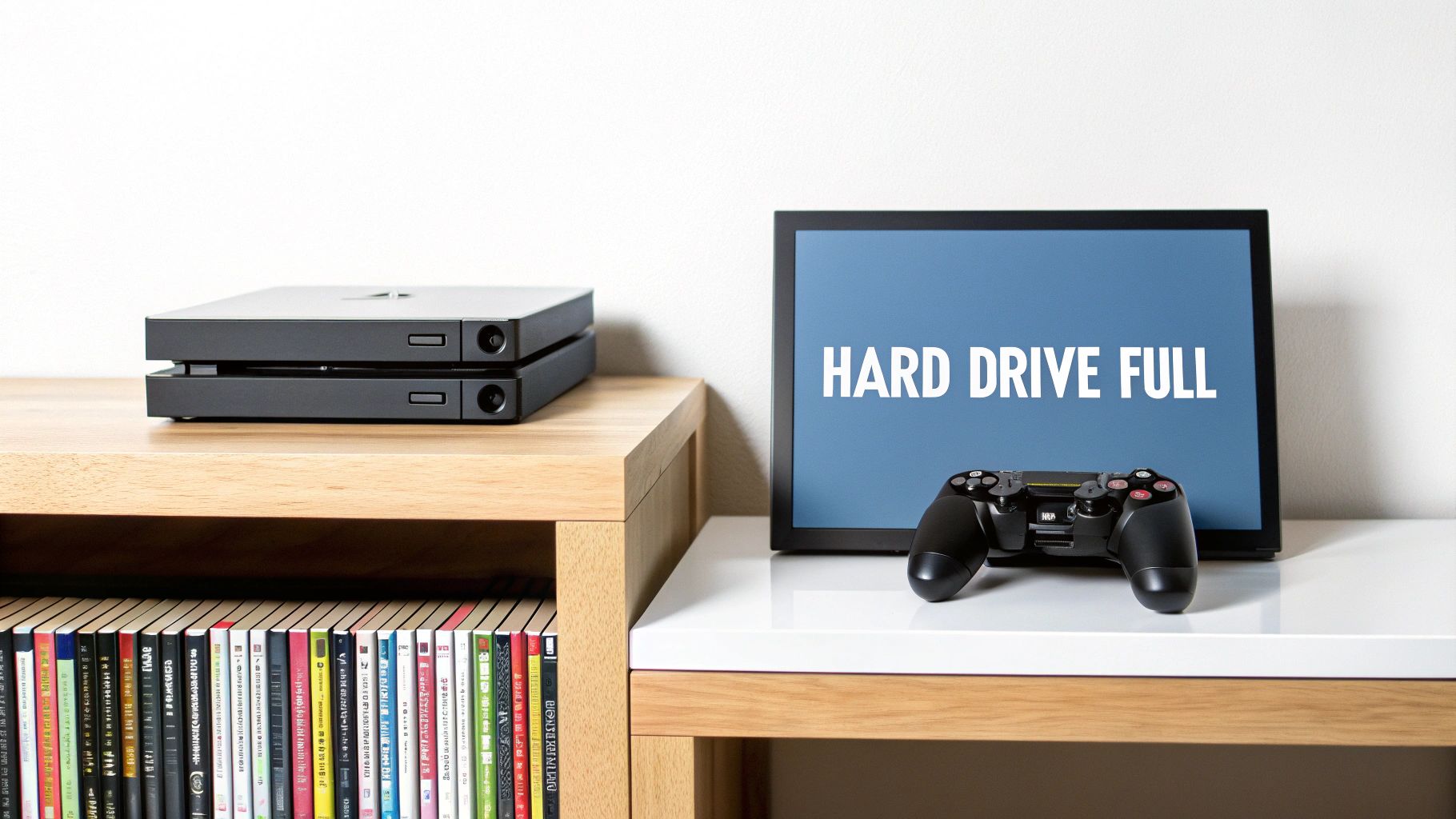
If the 500GB hard drive on your PlayStation 4 seems to fill up quickly, it's not your imagination. The primary reason is the large size of modern games, which have grown significantly since the console first launched. What once seemed like a large amount of storage can now hold only a few of today's major titles.
This has turned storage management from an occasional task into a regular one. To keep your console running efficiently and your game library organized, you need to be proactive. Knowing how to uninstall games is not just about freeing up room; it is essential for maintaining your PS4's performance.
The Growing Size of Modern Games
The growth in game file sizes has changed how gamers manage their consoles. Over the last decade, the average AAA game has become significantly larger. Early PS4 games might have taken up 30-40GB.
Today, a game like Call of Duty: Modern Warfare II can require over 130GB of space. A standard 500GB console that once held numerous games can now only fit three or four. This shift requires you to be selective about what stays and what goes.
By learning to manage your storage effectively, you take control of your gaming experience. It allows you to decide what to keep and what to remove, ensuring your console is always ready for the next adventure.
This new reality makes deleting old games a regular necessity. While newer consoles come with more storage, mastering your PS4’s hard drive is still a crucial skill. As you clear out old titles, it’s also a good time to look ahead at how technology is evolving, with developments like the new Meta Quest 3's Xbox Edition continuing to push the boundaries of what's next in gaming.
The Quickest Way to Delete Games From Your Home Screen

Many users have encountered the "Cannot download" error when their storage is full. You need a solution that is fast.
The quickest way to free up space is by uninstalling games directly from your main content launcher—the home screen you see when you start the console. This method bypasses system menus, giving you the space you need almost instantly.
For example, if you have finished a large game like Red Dead Redemption 2 and do not plan to play it again soon, you can clear its approximate 150 GB footprint with a few button presses instead of navigating through settings.
Deleting Directly from the Home Screen
This process is very straightforward. It does not require complex navigation, just a simple command using your DualShock 4 controller.
First, scroll through your library on the main dashboard until you find the game you want to remove. Once you have highlighted the icon, you do not need to launch it.
Instead, press the Options button on your controller. A small side menu will appear with several choices related to the game.
From that menu, find and select Delete. The PS4 will display a final confirmation message to ensure the action was not accidental. Confirm your choice, and the console will immediately start removing the game application from your hard drive. The entire process can take less than ten seconds.
Your save files are safe when using this method. When you delete a game this way, you are only removing the core application. Your saved progress, character builds, and campaign checkpoints are stored separately and remain untouched.
This is a significant feature. It means you can confidently uninstall a large game file to make room for a new one, knowing that if you ever reinstall it, you can continue from where you left off. Think of it as archiving the game without losing what is important.
A Strategic Approach to Managing System Storage
While deleting games from the home screen is a quick fix, a more strategic cleanup involves going into your PS4’s System Storage menu. This provides a detailed overview of what is using your hard drive space, allowing you to make more informed decisions.
To access it, go to Settings > Storage. This screen is the command center for your console’s hard drive. It breaks everything down by category—applications, saved data, themes, and more. Importantly, it lists every game installed, sorted by file size, so you can immediately identify the largest ones.
This is very useful when you are in a pinch. For example, if you need to clear exactly 100 GB for a new game, the storage menu might show you two older 50 GB games you have not played in a year. Removing those is a more efficient choice than deleting five smaller 20 GB indie titles you still play.
Making Smart Deletion Choices
The standard PS4 came with a 500GB hard drive, and later models offered 1TB, but many users have still faced storage limitations. This is not surprising. Between 2019 and 2023, reports indicated that a significant percentage of PS4 users in North America received storage warnings.
The problem has been compounded as games have grown in size. A typical major release in 2015 might have been 30-50GB. By 2023, games often exceeded 100GB at launch.
This menu functions as an inventory management system. It provides the data needed to decide which games offer the best "space-to-playtime" value, helping you keep your favorites without sacrificing room for new adventures.
Making this a regular habit will help you maintain a healthy amount of free space on your console. Proactive storage management is good practice, similar to keeping a gaming PC in optimal condition. If you're interested in high-performance hardware, you can learn more about Dell's ultimate gaming powerhouse.
By mastering how to uninstall games on your PS4 through the storage menu, you take full control over your digital library and ensure your console is always ready for what’s next.
Protecting and Managing Your Saved Game Data
A common concern is that deleting a game also deletes your progress. Many users have worried about accidentally erasing hundreds of hours of gameplay to make room for a new title.
Fortunately, the PS4 is designed to prevent this. The large game application file and the small save file are two different types of data, stored in separate locations. When you uninstall a game, you are only removing the installation data. Your progress, achievements, and character builds are stored safely.
You have full control over your save files, which are kept in a specific menu. To find them, navigate to Settings > Application Saved Data Management. This is the control center for all game progress data.
Understanding Your Save Data Options
Once you are in the management menu, you will see several choices. Each one allows you to handle your save files in a different way, whether you are making a backup or intentionally starting a game over.
- Saved Data in System Storage: This is the complete list of every save file currently on your console’s hard drive. From here, you can copy files to a USB drive, upload them to online storage, or delete them permanently.
- Saved Data in Online Storage: If you subscribe to PlayStation Plus, this is where your cloud saves are stored. This is very useful if you need to download your progress to a new console or restore a lost file.
- Saved Data on USB Storage Device: This shows any save files you have manually backed up to a connected USB drive. It is a reliable offline backup method.
The key point is that you are always in control. Unless you deliberately go into this specific menu and choose to delete a save file, your progress is safe, even after uninstalling the game itself.
When and Why to Manage Your Saves
Most of the time, you can leave your save files as they are. However, there are a few situations where you might need to manage them. For instance, if a save file becomes corrupted and prevents a game from loading, deleting it from this menu is often the solution.
Another reason is simply wanting a completely fresh start on a game, with no previous progress carrying over.
Backing up your saves is also a smart habit. For many gamers, a PlayStation Plus subscription is a good option for this. By 2023, a notable percentage of active PS4 owners had a subscription, giving them 100GB of cloud storage for save data. If you want to learn more about how gamers are using these services, you can explore current gaming industry trends. That online backup can be crucial if your console's hard drive ever fails.
What Happens When You Want to Reinstall Games?
Deleting a game to make room does not mean it is gone forever. This is an important thing to remember when managing your PS4’s storage. It gives you the freedom to clear out games you are not playing without the fear of losing something you purchased.
The license for any digital game you buy is tied permanently to your PlayStation Network account. Anything you have purchased from the PlayStation Store belongs to you.
Bringing Your Games Back
When you are ready to reinstall a digital game, the process is simple. Go to your Library from the main PS4 menu. You will find a “Purchased” section that lists every game and app you have ever downloaded or bought.
Find the game you want, select it, and the download will begin.
Think of your PS4's hard drive as a rotating library rather than a fixed storage box. Your entire digital collection is always accessible, as long as you can sign in to your account.
Reinstalling a disc-based game is even more straightforward. Just insert the game disc into your PS4. The console will recognize it and start reinstalling the necessary data from the disc.
With subscription services becoming a major part of modern gaming, it is useful to know which games you own versus which ones you have access to through a service. This is a similar consideration to determining if Xbox Game Pass is still worth it after a price increase.
Got Questions About Deleting PS4 Games?
You may know the basics of uninstalling games on your PS4, but a few questions might still remain. Let's clarify those so you can manage your storage effectively without worrying about deleting something important.
What Happens to My DLC and Add-Ons?
Many users wonder what happens to their downloadable content. If you have bought a game and its season pass, does the DLC disappear when you delete the main game?
Yes, it is removed. When you uninstall a game, all of its associated content — expansions, add-ons, and other digital items — is also uninstalled. However, just like the base game, all purchased DLC is tied to your account permanently. The moment you reinstall the game, you can return to your Library and download all of its add-ons again.
Will I Lose My Hard-Earned Trophies?
Imagine spending over 50 hours to earn a Platinum trophy, only to need the hard drive space. The fear of losing that progress is understandable.
Your trophies are completely safe.
Trophies are tied to your PlayStation Network account, not the game data on your console. Once you earn a trophy and your PS4 syncs online, that achievement is permanently logged on your profile. You can delete and reinstall games multiple times, and your trophies will remain.
Can I Still Use My PS4 While It's Deleting a Game?
Deleting even a large 100 GB game is surprisingly quick, usually taking only a few moments.
During that time, your PS4 remains usable. You can browse the home screen or check your friends list without any problems. That said, it is generally a good idea not to start another resource-intensive task, like downloading a different game or starting an online match, until the deletion is complete.
What About My Free PlayStation Plus Games?
If you delete a game you obtained for free with your PlayStation Plus subscription, you can re-download it later, provided your subscription is active. The game's license remains linked to your account.
If your PS Plus subscription lapses, you will lose access to these games until you resubscribe. As soon as you do, your entire library of previously claimed PS Plus titles will be available for you to download again.
For more expert guides, news, and reviews on everything PlayStation, Xbox, Nintendo, and PC, stay tuned to XP Melee. Explore our latest articles and join our community to stay ahead in the world of gaming.
Article created using Outrank