















It can be a frustrating experience when you plug in your DualSense controller after a gaming session, but the light bar doesn’t start pulsing orange. If nothing happens, your first thought might be a dead battery or a damaged controller.
However, before considering a replacement, the solution is often simpler than it appears. Frequently, the problem is a minor hardware or software issue that you can resolve in a few minutes.
Your First Checks for a Non-Charging Controller
Let’s start with the basics. We will rule out the most common culprits first before adjusting any PS5 settings.
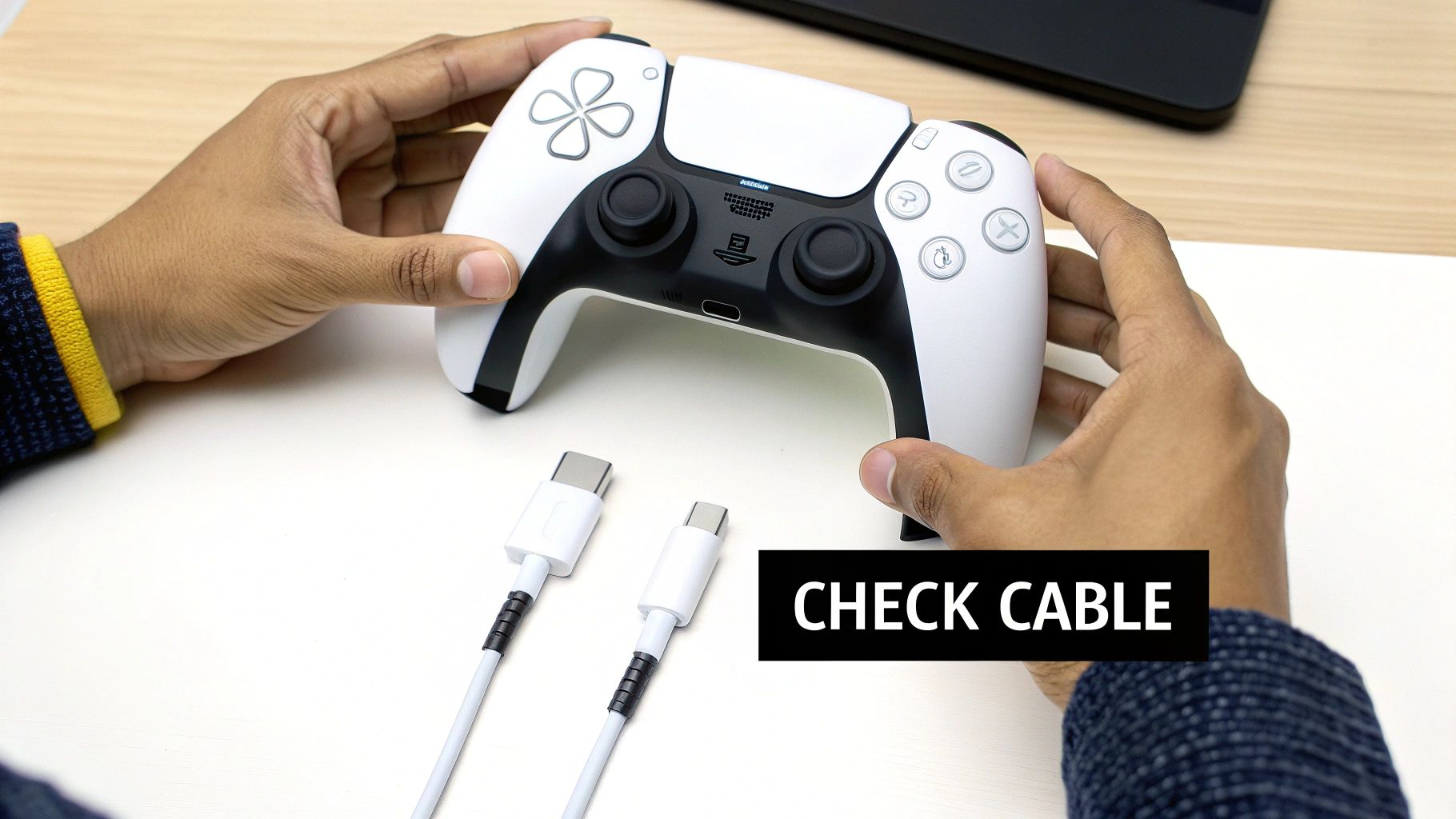
A common cause is the USB-C cable. These cables can endure significant wear from being bent, twisted, and connected to the console. This can cause internal breaks in the wire, preventing it from delivering a proper charge. The simplest first step is to try another USB-C cable that you know is working, such as one from a phone charger.
Test Different Power Sources
If swapping the cable did not resolve the issue, the next step is to check the power source. The USB ports on the PS5 can sometimes have issues, especially if the console is in Rest Mode.
Try these alternatives to see if the controller begins charging:
- Use the rear PS5 USB ports. The ports on the back of the console are SuperSpeed USB and often provide a more stable charge.
- Plug it into a PC or Mac. A computer is a reliable way to test if the controller is capable of drawing power from another source.
- Try a wall adapter. Any standard USB wall charger will work. Ensure it has an output of approximately 5V / 1.5A, which is usually printed on the plug.
This process of elimination can help you identify the problem quickly.
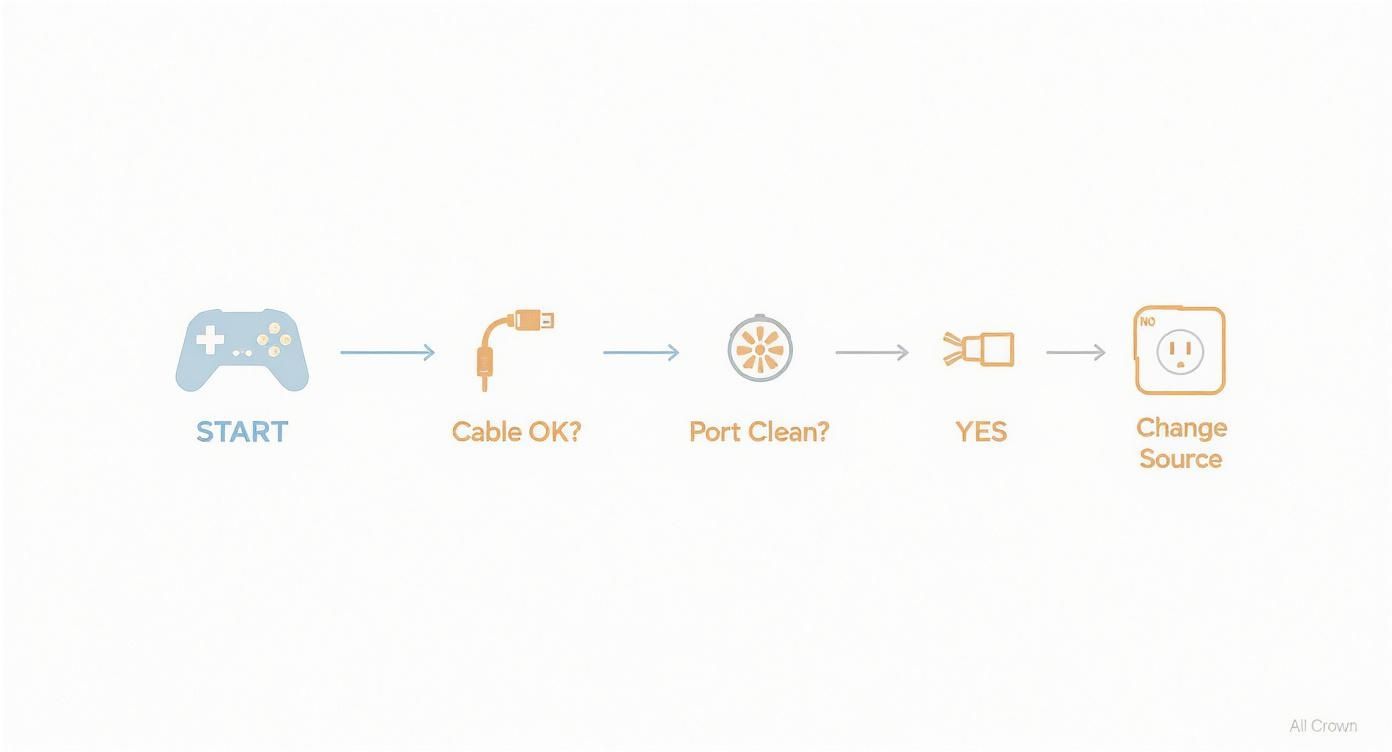
As you can see, checking the cable, port, and power source resolves a significant number of charging problems without needing to access system menus.
Before proceeding, review this quick checklist. It covers the most common and easily fixed issues.
Initial Troubleshooting Checklist
| Check | What to Look For | Quick Fix |
|---|---|---|
| USB-C Cable | Fraying, kinks, or visible damage. | Swap with a known-good USB-C cable. |
| Power Source | PS5 front port not responding. | Try the rear PS5 ports, a PC, or a wall adapter. |
| Charging Port | Dust, lint, or debris inside the controller’s port. | Use a can of compressed air to gently clean it out. |
Completing these checks will help determine if you are dealing with a simple external problem or something more complex within the controller or console.
Inspect the Controller’s Charging Port
One final hardware check is the USB-C port on the controller itself, which can collect dust, lint, and other debris. If enough material accumulates, it can physically block the cable from making a solid connection.
Use a flashlight to look inside the port. If you see debris, a few bursts from a can of compressed air should clear it out. Do not insert a paperclip or any sharp object, as you risk permanently damaging the delicate charging pins.
This is a common issue. For example, some reports show that a percentage of PS5 owners encounter a charging problem within the first year. The main causes are often low-quality third-party cables and blocked ports. You can find out more about PlayStation repair trends and common issues.
Digging into Your PS5’s Charging Settings
If you have checked all the hardware and everything seems functional, the next stop is your PS5’s system settings. A charging problem is not always due to a faulty controller or cable; it can be related to how the console manages power, especially in Rest Mode.
The most frequent issue is how your PS5 supplies power to its USB ports in Rest Mode.
Many people charge their controllers overnight or while away from the console. If your PS5 is not configured to send power to the USB ports in this low-power state, your controller will not charge. This setting is a primary reason for “PS5 controller not charging” issues.
How to Tweak USB Power in Rest Mode
To enable your controller to charge properly while your PS5 is in Rest Mode, you need to adjust the power-saving options. It’s a quick fix that can resolve the problem.
Here’s where to find it:
- From the PS5 home screen, go to Settings (the gear icon).
- Enter the System menu, then select Power Saving.
- Choose Features Available in Rest Mode.
- Find Supply Power to USB Ports and change the setting to Always or 3 Hours.
The 3 Hours option is sufficient to fully charge a DualSense controller and is more energy-efficient. Always keeps the ports powered indefinitely but will use slightly more standby power. For more tips on getting the most out of your console, check out our other guides covering all things PlayStation.
The impact of this setting is significant. In one analysis, users experiencing charging issues found that properly configuring the Rest Mode USB power led to a notable increase in successful charging. This suggests that many of these “broken” controller problems were actually just a software setting. You can review those controller charging findings for more information.
Don’t Skip Your Firmware Updates
Beyond power settings, outdated firmware can cause various bugs, including charging glitches. Sony releases system software updates regularly, and they often include stability patches and performance fixes in addition to new features. These updates can be crucial for resolving communication issues between your PS5 and its accessories.
Your PS5 typically prompts you to update, but it is wise to check manually if you are encountering problems. Go to Settings > System > System Software > System Software Update and Settings.
Controller firmware updates are also delivered through the console. When you connect your DualSense and an update is available, a pop-up will appear. It is easy to dismiss these notifications, but you should always install them. A controller running old firmware might not charge correctly or could behave erratically. Keeping both your console and controller on the latest software is a necessary troubleshooting step.
Time for a Reset? Here’s How to Do It Right
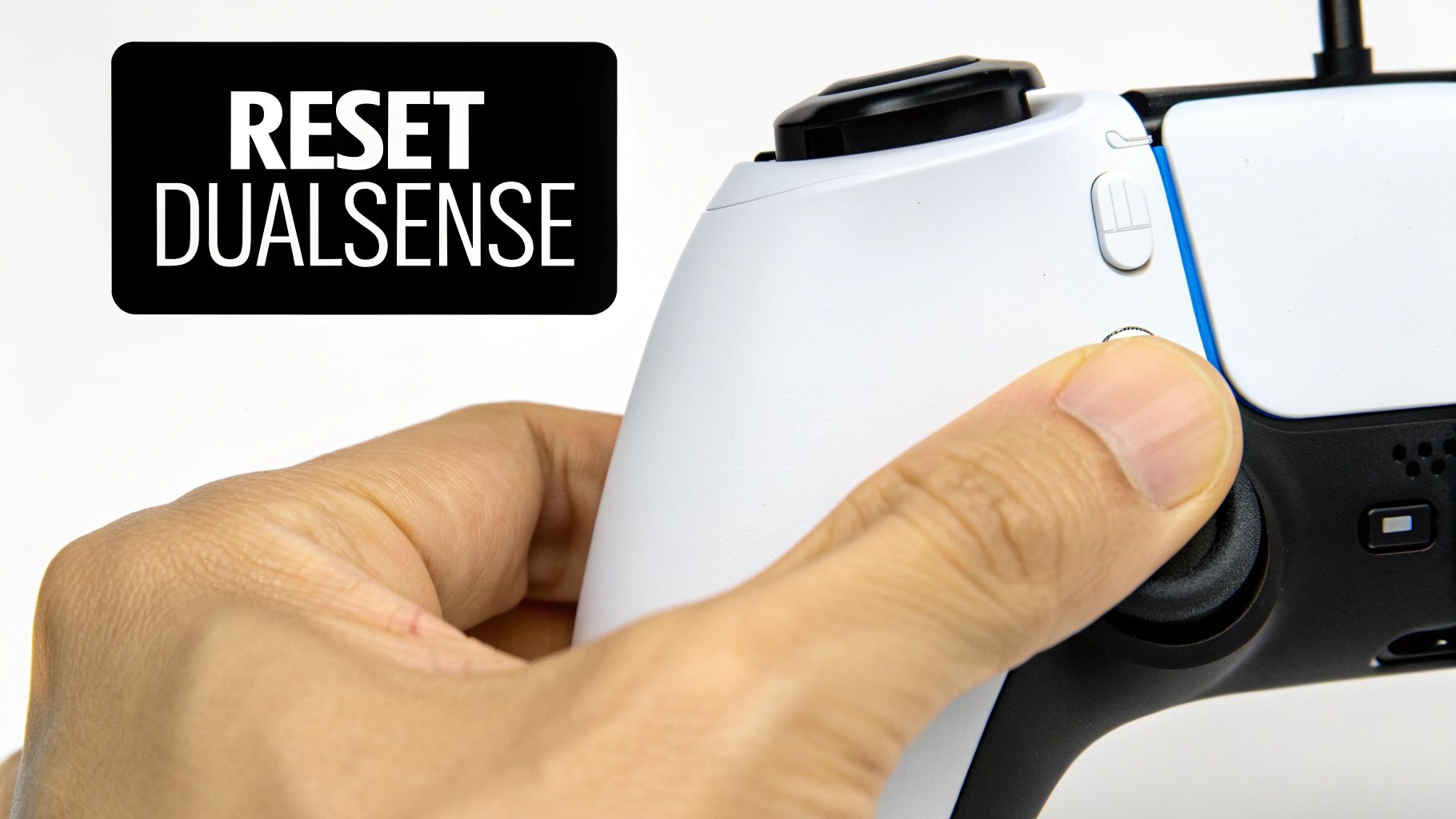
If basic troubleshooting—cables, ports, and settings—did not work, you may be dealing with a software glitch. Firmware can sometimes enter an unusual state, causing the controller to ignore power. The best fix for this is a factory reset.
This process is less dramatic than it sounds. A reset forces the controller’s internal software back to its default state, which can resolve corrupted data that is causing the charging problem. It is an effective step that might save you from buying a new controller.
Finding and Using the Reset Button
You will need a small, pointed object for this—a paperclip or a SIM ejector tool will work.
Turn your DualSense controller over. Look for a small pinhole next to one of the screws near the L2 button.
Here is the procedure:
- First, ensure your PS5 is completely powered down, not in Rest Mode.
- Gently push your tool into the pinhole until you feel a click.
- Press and hold that button down for about five seconds.
This will reset the controller’s firmware. It is now unpaired from your console, giving it a fresh start.
This procedure is often effective. Support centers have noted that guiding users through this simple reset resolves a high percentage of charging complaints without requiring professional repair. For a visual guide, see this video on how resetting a DualSense controller can resolve connection and charging issues.
Re-Pairing the Controller to Your PS5
After a reset, your controller is no longer paired with your console. You need to re-establish the connection.
Take a reliable USB-C data cable (the one included with your PS5 is ideal) and plug it into the controller. Connect the other end to one of the USB ports on the front of your console.
Now, power on your PS5 and press the PlayStation button in the middle of the controller.
The light bar will flash briefly before turning a solid color. A solid light indicates that the controller is paired, and any communication bugs that were preventing it from charging should be resolved.
Testing Alternative Charging Methods
If connecting your controller directly to the PS5 is not working, it is time to investigate further. The goal is to determine if the problem is with the controller itself or with your console. By trying different power sources, you can quickly narrow down the cause.
When you charge the controller somewhere else, you are testing if its battery and internal circuits are still functional. If it lights up and starts charging, you have confirmed the issue is likely with your PS5’s USB ports or a system setting.
Try a Different Power Source
First, use a power source that is independent of your PlayStation 5. This removes the console from the equation, giving you a clear answer on your controller’s health.
A few reliable options you likely have available:
- A PC or Mac: Plugging your DualSense into a computer is an excellent diagnostic step. The USB ports on a desktop or laptop provide a steady charge that is suitable for testing.
- A Standard Wall Adapter: A spare phone or tablet charger will work. Make sure it’s from a reputable brand with an output of at least 5V / 1.5A to provide sufficient power.
If the controller’s light bar starts pulsing orange when you connect it to one of these, it means your controller is functional, and the problem is almost certainly related to the PS5’s power delivery.
Using a Dedicated Charging Station
The most effective way to test this is with an official DualSense Charging Station. This accessory bypasses the controller’s USB-C port, which is a common point of failure after extended use.
The charging station connects to the metal contacts on the bottom of the controller, not the USB-C port on top. This is a great way to test for a damaged USB-C port. If your controller does not charge with a cable but works on the dock, you have identified the problem.
This dock not only helps with troubleshooting but also offers a convenient way to store and charge two controllers at once without cables.
To help you decide what to try first, here is a comparison of each charging method. This can also help you diagnose the root cause of your issue.
Comparing Different Charging Methods
| Charging Method | Pros | Cons |
|---|---|---|
| PC or Mac | Readily available and provides a stable charge. | Requires a computer to be on and awake. |
| Wall Adapter | Convenient and doesn’t require the PS5 to be on. | Requires a compatible adapter; low-quality ones may not work. |
| Charging Station | Bypasses the USB-C port, making it a great diagnostic tool. | It is a separate purchase. |
By using these alternatives, you can determine where the charging problem originates. From there, you are one step away from a solution.
Time to Consider a Repair or Replacement
If you have tried every troubleshooting step without success, it is time to consider that the problem may be internal hardware.
Identifying the issue is the last step before you can decide on the best way forward.
There are a couple of clear indicators of a hardware failure. Examine the USB-C port. If the cable feels loose when you plug it in or only charges when held in a specific position, that is a classic sign of a damaged port from wear and tear.
Another sign is a failing battery. If your controller appears to charge fully but loses power almost immediately after being unplugged, the internal battery has likely reached the end of its life.
First Stop: Check Your Warranty
Before spending money, your first action should be to check your warranty status. In Canada, Sony provides a one-year manufacturer’s warranty for the PlayStation 5 and its accessories, including the DualSense controller. If your console is less than a year old, you are almost certainly covered.
Visit Sony’s official PlayStation support website to start a service request. You will need the controller’s serial number (located on the back) and your proof of purchase. The process is straightforward, and Sony will typically provide instructions to send the controller for repair or replacement at no cost.
Always double-check your purchase date, even if you are nearing the one-year mark. Obtaining a free replacement under warranty is the most cost-effective solution.
What to Do If You’re Out of Warranty
If your warranty has expired, you have a choice: pay for a repair or buy a new controller. This usually comes down to cost versus convenience.
Here’s how your options compare:
- Third-Party Repair Shops: Local electronics repair shops can often fix common problems like a damaged charging port or a battery replacement. The cost can vary but is usually less than a new controller. Be sure to choose a reputable shop with good reviews, as a poor repair can cause more damage.
- Buying a New Controller: A new DualSense controller is a guaranteed solution. It includes a new warranty and may have minor hardware improvements. While it is the more expensive option, it eliminates any guesswork. If your old controller also had issues like stick drift or worn buttons, a replacement is a smart investment.
Ultimately, the decision depends on your budget and the overall condition of your old controller. If the only issue is a faulty port on an otherwise functional controller, a repair could save you money. But if it is showing multiple signs of wear, putting that money toward a new one is the better long-term choice.
Tips to Prevent Future Charging Problems
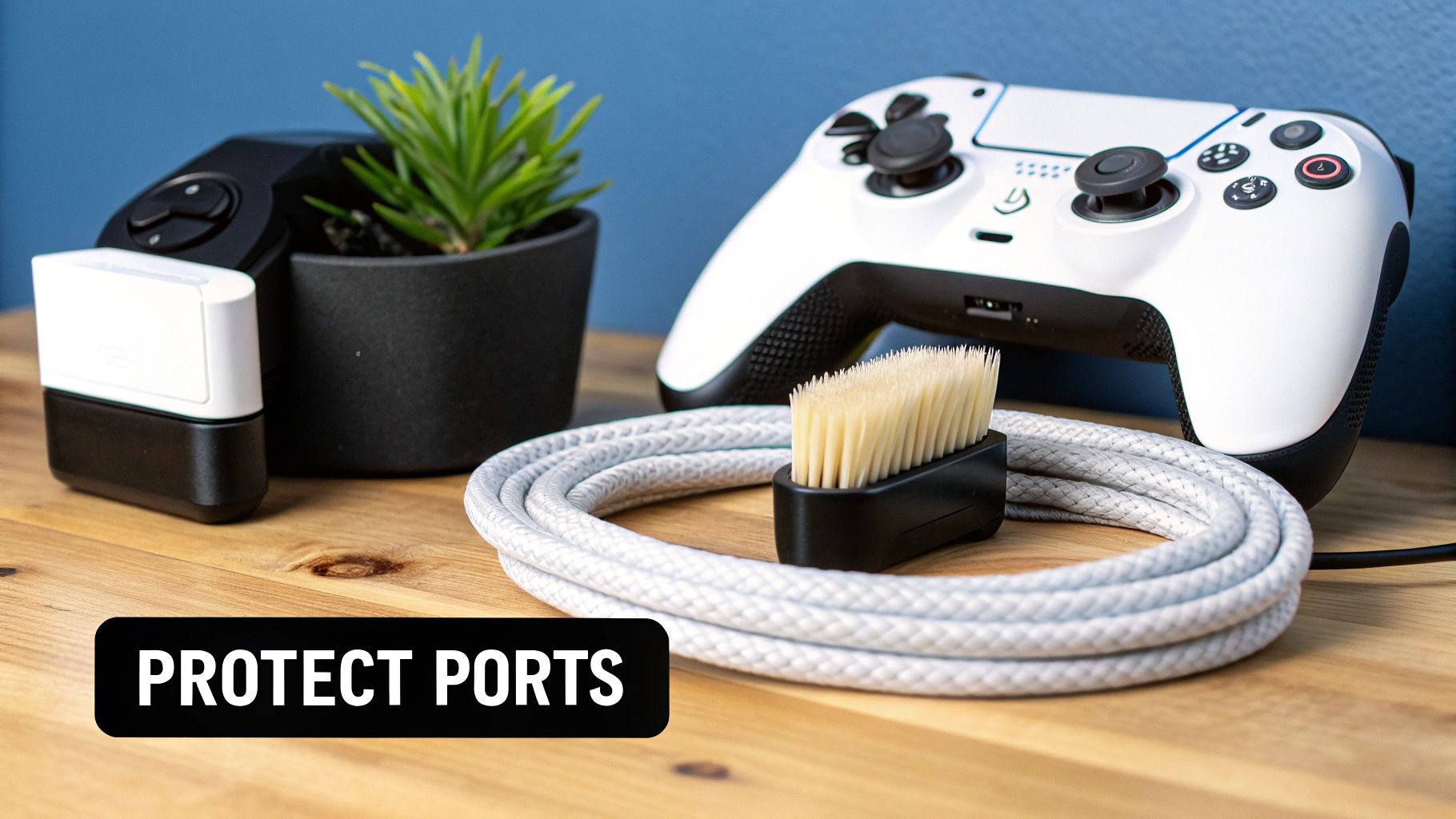
A few good habits can prevent future frustration and keep your DualSense charging correctly. Most charging issues are related to the controller’s most vulnerable component: the USB-C port.
Handle it with care. Always insert and remove the charging cable straight. Pulling it out at an angle puts stress on the internal pins, which can lead to a loose and unreliable connection. This small adjustment can make a significant difference over time.
Smart Charging Habits
Avoid using low-quality cables. A cheap USB-C cable might seem like a good deal, but it often cannot deliver the correct amount of power and could even damage the port. Use the official Sony cable or one from a reputable brand.
A little maintenance also helps.
- Keep It Clean: Occasionally, use a can of compressed air to clean the USB-C port. A surprising amount of dust and lint can accumulate inside.
- Avoid Overcharging: The DualSense has built-in protection, but it is still good practice to unplug it once it is fully charged. This helps preserve the battery’s long-term health.
A dedicated charging station is an excellent preventative measure. It charges the controller through the external contacts on the bottom, completely bypassing the USB-C port. Less daily use of the port means significantly less wear and tear.
Treating your equipment with care ensures it is ready when you are. If you want to upgrade your setup, there are many gaming accessories available that can improve your overall experience.
Got Questions About PS5 Controller Charging?
Even after following all troubleshooting steps, you might still have some questions. Here are answers to some of the most common ones from gamers whose DualSense controllers will not charge.
How Long Does a DualSense Controller Take to Charge?
From empty to full, a DualSense controller typically takes about three hours to charge when connected to your PS5’s USB port.
If you notice it is taking much longer, or it never seems to reach a full charge, you could be dealing with a failing battery or an issue with your power source.
Can I Use Any USB-C Cable to Charge My Controller?
While most USB-C cables will fit, they are not all created equal. For the best and safest results, use the official cable that came with your console or a high-quality, data-capable USB-C cable from a trusted brand.
Low-cost, third-party cables are often designed only for power delivery. They may lack the proper internal wiring to communicate correctly with the PS5, which can cause charging to fail or be intermittent.
Pro Tip: If your controller only charges when the PS5 is in Rest Mode, check your power settings. This is a common symptom of the “Supply Power to USB Ports” setting being turned off. Change it to “Always” or “3 Hours” to resolve the issue.
Will a Wall Adapter Charge My PS5 Controller Faster?
Plugging your controller into a wall adapter is convenient, but it will not charge any faster than the PS5 console itself. The DualSense has internal regulators that control charging speed to protect the battery’s health.
If you use this method, use a standard wall adapter with an output of around 5V / 1.5A. Avoid using powerful “fast chargers” from new smartphones, as they will not speed up charging and could put unnecessary stress on the battery over time.